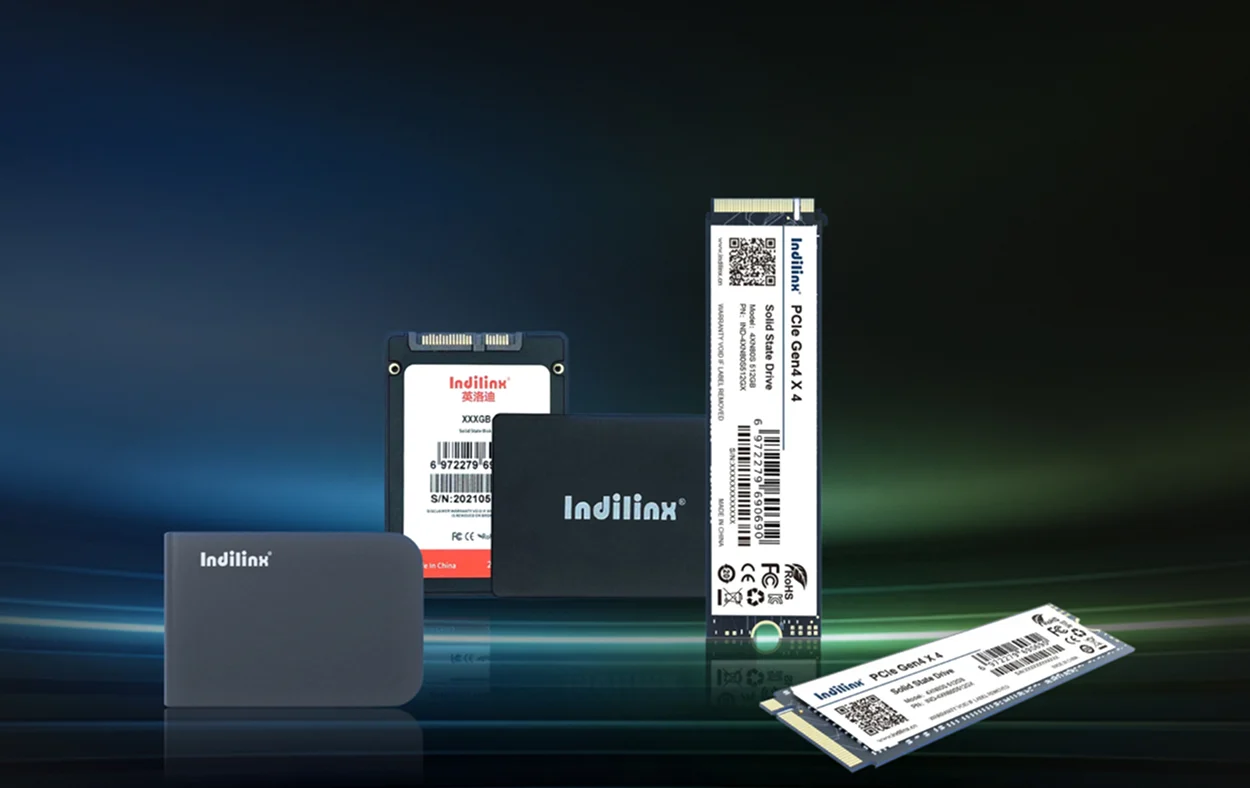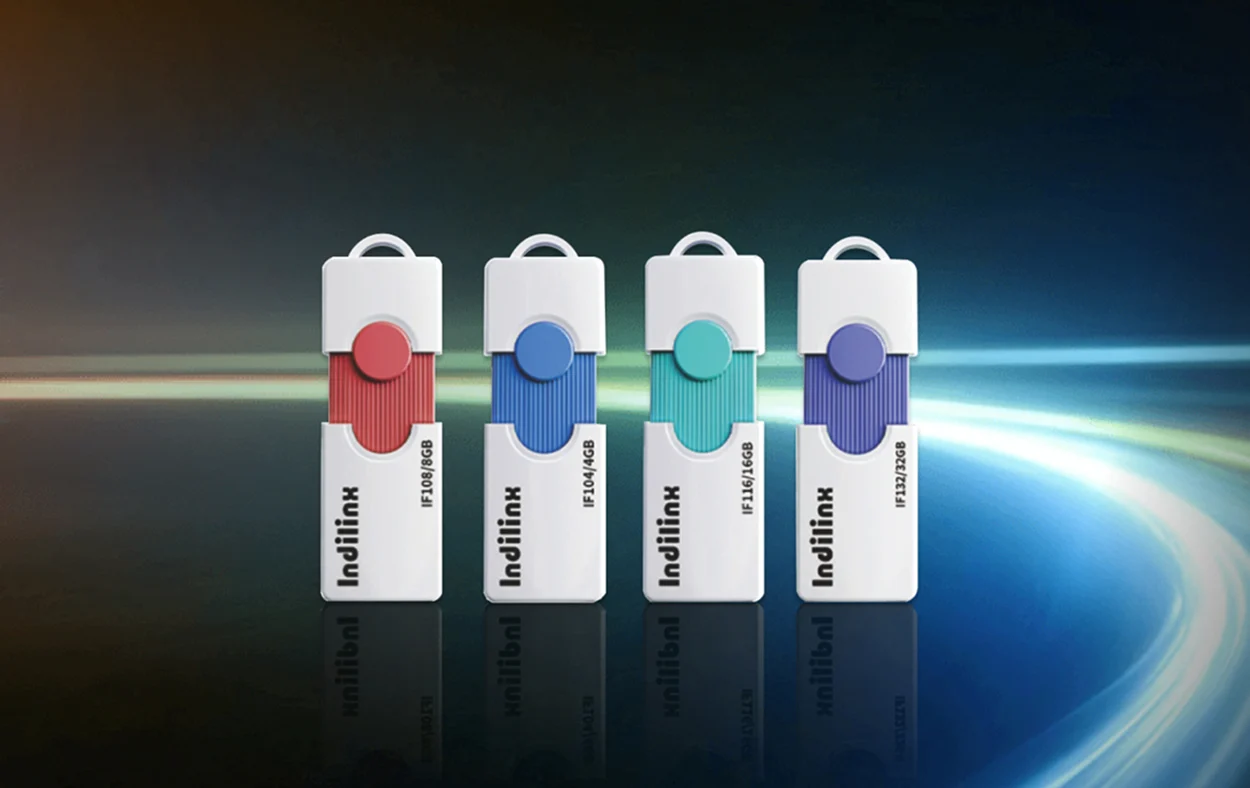








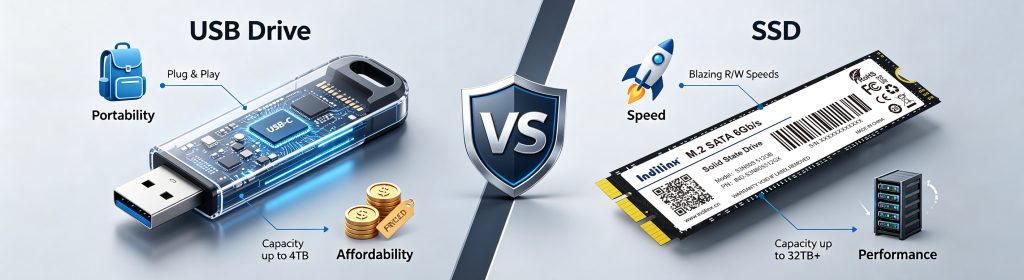
USB drives and SSDs are both widely used for storing and transferring data, but they differ significantly in speed, capacity, and performance. While USB drives prioritize portability and affordability, SSDs are designed for faster and more demanding workloads.
So, which storage device is better in 2026? The answer depends on your budget, performance requirements, and intended use. In this guide, we compare USB drives and SSDs in terms of speed, capacity, durability, real-world performance, and overall value to help you choose the right storage solution.
USB Drive vs SSD: Quick Comparison
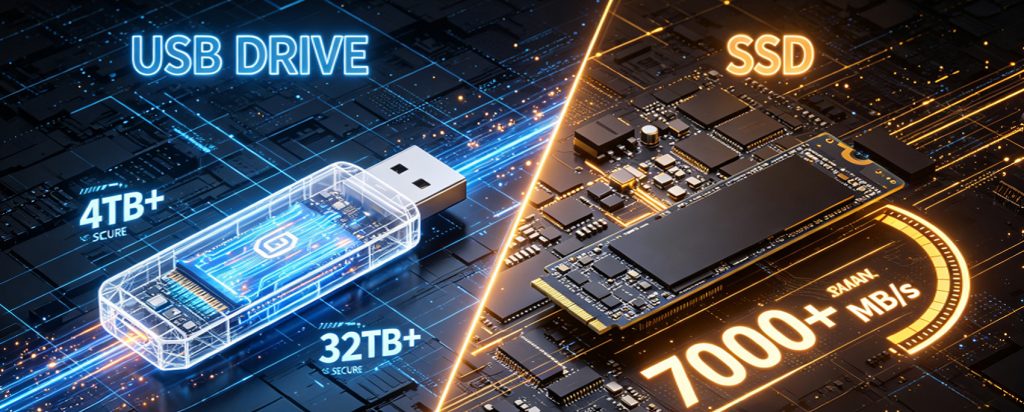
When choosing between a USB drive and an SSD, the right option depends on your storage needs, budget, and performance requirements. USB drives are highly portable, affordable, and ideal for transferring documents or small files. SSDs, on the other hand, offer significantly faster speeds, larger capacities, and better overall performance.
The table below highlights the main differences between the two storage devices:
| Feature | USB Drive | SSD |
| Storage Technology | Flash memory | NAND flash memory |
| Typical Capacity | 16GB–512GB | 250GB–8TB+ |
| Read/Write Speed | 20–400 MB/s | 500–7,000 MB/s |
| Portability | Excellent | Good |
| Долговечность | Good | Excellent |
| Power Requirement | USB powered | USB or external power |
| Price per GB | Lower | Higher |
| Best For | File transfer and portability | Performance and large storage |
| Lifespan | Moderate | Longer |
| Operating System Support | Yes | Yes |
Overall, USB drives are a practical choice for everyday file transfers and portable storage, while SSDs are better suited for backups, gaming, professional work, and large file management. If speed and reliability are your priorities, an SSD is usually the better option. If affordability and convenience matter most, a USB drive may be sufficient.
Understanding USB Drives and SSDs
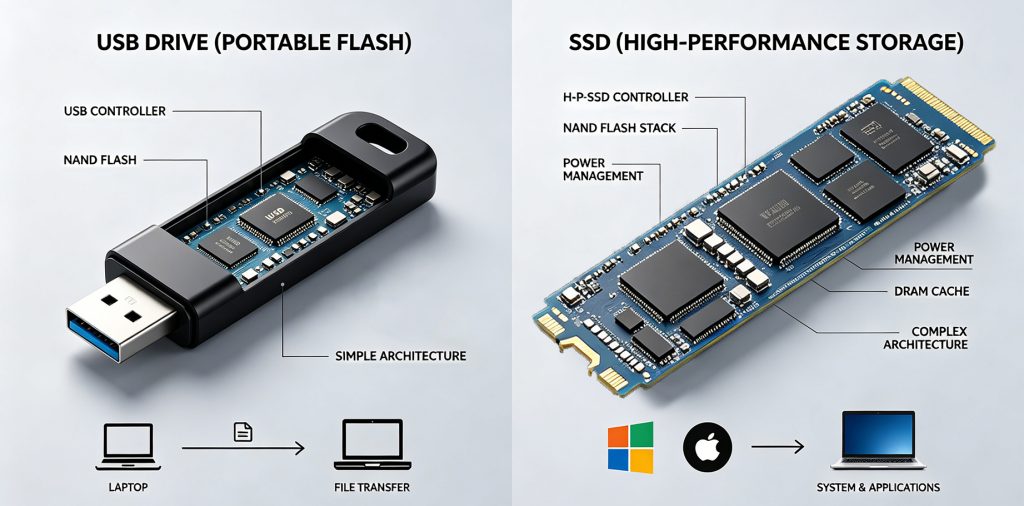
Before comparing their performance and value, it is important to understand what USB drives and SSDs are and how they store data. Although both devices use flash memory, they are designed for different storage needs.
What Is a USB Drive?
A USB drive is a small portable storage device that connects to a computer or other devices through a USB port. It is commonly used for transferring files, storing documents, and carrying data between devices.
Common characteristics of USB drives include:
- Compact and lightweight design
- Plug-and-play functionality
- Low cost and wide availability
- Easy file transfer between devices
- No external power required
| Feature | USB Drive |
| Typical Capacity | 16GB–512GB |
| Интерфейс | USB-A, USB-C |
| Portability | Excellent |
| Best For | File transfer and portable storage |
What Is an SSD?
An SSD (Solid State Drive) is a high-performance storage device that uses flash memory to store data. Unlike traditional hard drives, SSDs have no moving parts, allowing them to deliver faster speeds and greater reliability.
SSDs are commonly used in:
- Laptops and desktop computers
- Gaming systems
- Content creation workstations
- Backup storage devices
- External portable storage
| Feature | SSD |
| Typical Capacity | 250GB–8TB+ |
| Интерфейс | SATA, NVMe, USB |
| Performance | Very high |
| Best For | Speed and large storage |
Key Technologies Behind Both Devices
Although USB drives and SSDs serve different purposes, they share several underlying technologies.
- NAND Flash Memory: Stores data electronically without moving parts.
- Controller Chip: Manages data reading and writing operations.
- USB Interface: Allows communication between the device and the computer.
- Solid-State Design: Improves durability and shock resistance.
| Technology | USB Drive | SSD |
| NAND Flash Memory | ✓ | ✓ |
| Controller Chip | ✓ | ✓ |
| Mechanical Parts | ✗ | ✗ |
| Solid-State Storage | ✓ | ✓ |
| High-Speed Controller | Limited | Advanced |
While both devices rely on flash memory, SSDs typically use more advanced controllers, larger cache systems, and faster interfaces, resulting in significantly better overall performance.
USB Drive vs SSD: Core Differences Explained

Although USB drives and SSDs both use flash memory, they are designed for different purposes. USB drives prioritize portability and convenience, while SSDs focus on speed, capacity, and long-term performance. Understanding their core differences can help you choose the right storage solution.
Speed and Performance
Speed is one of the biggest differences between USB drives and SSDs. While both devices use flash memory, their performance can vary significantly depending on the interface, controller, and storage technology used.
Sequential Read and Write Speed
USB drives are primarily designed for portability and basic file transfers. Their speeds vary depending on the USB standard and the quality of the internal controller.
SSDs, however, are designed for high-performance storage and can process large amounts of data much faster.
| Device Type | Скорость чтения | Скорость записи |
| USB 2.0 Drive | 20–40 MB/s | 10–30 MB/s |
| USB 3.0 Drive | 100–300 MB/s | 30–150 MB/s |
| SATA SSD | 450–550 MB/s | 400–500 MB/s |
| NVMe SSD | 3,000–7,000 MB/s | 2,000–6,000 MB/s |
Large File Transfer Performance
The performance difference becomes more noticeable when transferring large files.
For example, moving a 50GB video library or a game installation folder can take several minutes on a USB drive, while an SSD can complete the same task much faster.
SSDs are particularly beneficial for:
- 4K and 8K video files
- RAW photo collections
- Game installations
- Software packages
- System backups
Everyday Performance
For everyday tasks such as storing documents, presentations, or small media files, most USB drives provide sufficient performance.
However, SSDs offer advantages in more demanding workloads, including:
- Faster application loading
- Quicker file searches
- Smoother multitasking
- Reduced waiting times
Performance Winner
| Usage Scenario | Better Choice |
| Documents and small files | USB Drive |
| Large file transfers | SSD |
| Gaming and applications | SSD |
| Video editing | SSD |
| Everyday portability | USB Drive |
Overall, SSDs deliver substantially better performance, especially for users who frequently transfer large files or work with demanding applications. USB drives remain suitable for basic storage and occasional file sharing, but they cannot match the speed capabilities of modern SSDs.
Storage Capacity
Storage capacity determines how much data a device can hold and directly affects how the device is used. While both USB drives and SSDs are available in a wide range of capacities, SSDs generally offer much larger storage options and are better suited for growing data demands.
Available Capacity Options
USB drives are typically designed for portable storage and file transfer, so most models focus on smaller capacities.
Common USB drive capacities include:
- 16GB
- 32GB
- 64GB
- 128GB
- 256GB
- 512GB
Although some high-capacity USB drives offer 1TB or even 2TB of storage, these models are relatively expensive and less common.
SSDs, on the other hand, are designed to handle larger workloads and long-term storage needs.
Common SSD capacities include:
- 250GB
- 500GB
- 1TB
- 2TB
- 4TB
- 8TB and above
| Ёмкость | USB Drive | SSD |
| 16GB–64GB | Common | Rare |
| 128GB–512GB | Common | Available |
| 1TB | Limited | Common |
| 2TB | Rare | Common |
| 4TB+ | Very rare | Widely available |
Storage for Different File Types
The amount of storage required depends heavily on the type of files being stored.
| File Type | Typical Size |
| Office document | 1–10 MB |
| Photo | 5–25 MB |
| HD movie | 4–8 GB |
| 4K video | 20–100 GB |
| Modern game | 50–150 GB |
| Video project | 100 GB+ |
For documents, presentations, and small media files, a USB drive often provides sufficient storage. However, users working with high-resolution videos, large game libraries, or professional projects may quickly exceed the capacity limits of most USB drives.
Scalability and Long-Term Storage
As file sizes continue to grow, storage requirements have increased significantly in recent years. Modern applications, operating systems, and media files consume far more space than they did several years ago.
SSDs provide greater flexibility for future storage needs because they are available in larger capacities and continue to become more affordable.
USB drives remain practical for:
- Temporary storage
- Document transfer
- Small backups
- Portable file sharing
SSDs are better suited for:
- Large media libraries
- System backups
- Gaming storage
- Creative projects
- Professional workloads
Capacity Winner
| Storage Need | Better Choice |
| Documents and small files | USB Drive |
| Portable storage | USB Drive |
| Large media collections | SSD |
| Game libraries | SSD |
| Long-term storage | SSD |
| Professional workloads | SSD |
Overall, USB drives provide enough capacity for everyday storage tasks, while SSDs offer significantly larger storage options for users who need to manage growing amounts of data. For long-term storage and high-capacity applications, SSDs have a clear advantage.
Portability
Portability is one of the main advantages of USB drives. While both USB drives and portable SSDs are designed for mobility, they differ in size, weight, and overall convenience.
Physical Size and Design
USB drives are extremely compact and can easily fit into a pocket, wallet, or keychain. Portable SSDs are also small but typically require larger enclosures to protect their internal components.
| Feature | USB Drive | Портативный SSD |
| Typical Weight | 5–20 g | 30–100 g |
| Pocket Size | Excellent | Good |
| Keychain Design | Common | Rare |
| Cable Required | No | Usually |
Everyday Carry Convenience
USB drives offer true plug-and-play functionality. Users can connect them directly to a USB port without additional accessories.
Portable SSDs often require:
- USB-C or USB cables
- Extra storage space in a bag
- Compatible ports on the device
USB drives are commonly used for:
- Office documents
- School files
- Presentations
- Quick file transfers
Portable SSDs are more suitable for:
- Large media files
- Video projects
- Backup storage
- Professional workloads
Portability Winner
| Usage Scenario | Better Choice |
| Everyday carry | USB Drive |
| Quick file transfer | USB Drive |
| Travel convenience | USB Drive |
| Rugged protection | SSD |
| Mobile workstations | SSD |
Overall, USB drives provide better portability because of their smaller size and cable-free design. Portable SSDs offer improved durability and larger capacities, but USB drives remain the most convenient option for carrying and transferring files on the go.
Совместимость
Compatibility determines how easily a storage device works with different operating systems, hardware, and interfaces. While both USB drives and SSDs support most modern devices, USB drives generally offer broader compatibility and greater convenience.
Совместимость с устройствами
USB drives are widely supported across consumer electronics and can be used without additional software or accessories.
Common compatible devices include:
- Desktop computers
- Laptops
- Smart TVs
- Game consoles
- Car audio systems
- Printers
- Media players
Portable SSDs also support many devices but may require specific ports or cables.
| Device Type | USB Drive | Портативный SSD |
| Desktop PC | ✓ | ✓ |
| Laptop | ✓ | ✓ |
| Smart TV | ✓ | Limited |
| Game Console | ✓ | ✓ |
| Car Audio | ✓ | Rare |
| Printer | ✓ | Rare |
Connectivity and Ease of Use
USB drives provide a simple plug-and-play experience and usually connect directly to a USB port.
Portable SSDs may require:
- USB-C cables
- USB adapters
- Thunderbolt ports
- External power in some cases
Compatibility Winner
| Scenario | Better Choice |
| Plug-and-play use | USB Drive |
| Older devices | USB Drive |
| Consumer electronics | USB Drive |
| Modern computers | SSD |
| High-speed interfaces | SSD |
Overall, USB drives offer better compatibility because they work with a wider range of devices and require no additional accessories. SSDs provide excellent support on modern systems but may depend on specific ports, cables, or formatting requirements.
Security
Security is an important consideration when storing personal, business, or sensitive data. Both USB drives and SSDs offer data protection features, but SSDs generally provide more advanced security options and better long-term data protection.
Data Protection Features
Many modern USB drives include basic security functions designed to protect files from unauthorized access.
Common USB drive security features include:
- Password protection
- Software encryption
- File locking applications
- Fingerprint authentication (selected models)
Portable SSDs often provide more advanced security technologies.
Typical SSD security features include:
- AES hardware encryption
- Password protection
- Secure erase functions
- Hardware-based authentication
| Security Feature | USB Drive | SSD |
| Password Protection | Available | Available |
| Software Encryption | Common | Common |
| Hardware Encryption | Limited | Common |
| Fingerprint Security | Available | Available |
| Secure Erase | Rare | Common |
Data Loss Risks
Because USB drives are extremely small and portable, they are easier to lose or misplace. Inexpensive models may also have limited protection against data corruption.
Potential risks of USB drives:
- Physical loss
- Accidental removal
- Lower-quality flash memory
- Limited recovery options
SSDs generally provide better data management and error correction technologies, reducing the risk of data loss.
Security Winner
| Security Scenario | Better Choice |
| Basic file protection | USB Drive |
| Password security | Tie |
| Hardware encryption | SSD |
| Sensitive business data | SSD |
| Long-term data protection | SSD |
Overall, USB drives provide sufficient security for everyday file storage and sharing, while SSDs offer stronger encryption, better data protection, and more advanced security features. For users storing sensitive information or important backups, SSDs are typically the safer choice.
Cost Per Gigabyte
Cost per gigabyte is an important factor when comparing USB drives and SSDs. While USB drives usually have a lower purchase price, SSDs often provide better value at larger capacities and deliver significantly better performance.
Initial Purchase Cost
USB drives are generally the more affordable option, especially for small storage capacities. They are ideal for users who need inexpensive storage for documents, photos, or temporary file transfers.
Typical entry-level capacities include:
- 32GB
- 64GB
- 128GB
- 256GB
SSDs have higher upfront costs because they offer larger capacities and faster performance.
Common SSD capacities include:
- 500GB
- 1TB
- 2TB
- 4TB
| Ёмкость | USB Drive | SSD |
| 64GB | Lower cost | Rare |
| 256GB | Доступная цена | Higher cost |
| 1TB | Expensive | Common |
| 2TB+ | Limited | Widely available |
Long-Term Value
Although SSDs cost more initially, they often provide better long-term value because of their:
- Faster transfer speeds
- Larger capacities
- Better durability
- Longer lifespan
- Higher productivity
USB drives remain a cost-effective choice for:
- Basic file storage
- School documents
- Temporary backups
- File sharing
Cost Winner
| Buying Scenario | Better Choice |
| Lowest purchase price | USB Drive |
| Small storage needs | USB Drive |
| Large storage capacity | SSD |
| Performance value | SSD |
| Long-term investment | SSD |
Overall, USB drives offer the lowest entry cost and are suitable for light storage needs. However, SSDs provide better value per gigabyte at higher capacities while delivering superior performance and reliability, making them a better long-term investment for many users.
Which Device Performs Better in Real-World Use?

While technical specifications highlight the differences between USB drives and SSDs, real-world performance often depends on specific tasks and usage scenarios. From transferring large files to gaming, backups, and professional workloads, each device offers different advantages. The following sections compare their performance in everyday applications.
Large File Transfers
For many users, transferring large files is one of the most common storage tasks. Whether moving photos, videos, project folders, or software packages, transfer speed can significantly affect productivity. In these situations, the performance gap between USB drives and SSDs becomes much more noticeable.
Moving Photos and Videos
Modern media files continue to grow in size. High-resolution photos and videos can quickly consume storage space and require faster transfer speeds.
Typical file sizes include:
USB drives can handle occasional photo transfers effectively, especially for smaller files. However, transferring hundreds of RAW images or large video collections may take considerably longer.
SSDs offer much faster read and write speeds, making them better suited for:
- Large photo libraries
- 4K and 8K videos
- Media backups
- Camera storage workflows
| File Type | USB Drive | SSD |
| JPEG photos | Good | Excellent |
| RAW images | Moderate | Excellent |
| HD videos | Good | Excellent |
| 4K videos | Limited | Excellent |
Handling Large Project Files
Professional files often contain multiple folders, assets, and large datasets that require frequent transfers.
Examples include:
- Video editing projects
- CAD files
- Software packages
- Design assets
- Game installation files
Large project folders may contain thousands of individual files, which can slow down many USB drives. SSDs handle these workloads much more efficiently because of their higher bandwidth and faster controllers.
| Task | USB Drive | SSD |
| 10GB project folder | Moderate | Fast |
| 50GB backup files | Slow | Fast |
| Large media projects | Limited | Excellent |
| Frequent transfers | Moderate | Excellent |
Large File Transfer Winner
| Scenario | Better Choice |
| Small photo collections | USB Drive |
| Document transfers | USB Drive |
| Large video files | SSD |
| Project folders | SSD |
| Frequent file transfers | SSD |
Overall, USB drives remain suitable for occasional file sharing and small media collections. However, when transferring large files or managing professional projects, SSDs provide substantially faster performance and a more efficient workflow.
System Backup and Recovery
Backing up important data is one of the most common uses for both USB drives and SSDs. However, backup speed and recovery efficiency can vary significantly depending on the amount of data being stored.
Backup Speed
USB drives are suitable for backing up documents, photos, and smaller folders. Their lower transfer speeds are usually sufficient for occasional backups.
Portable SSDs provide much faster backup performance, especially when handling large amounts of data.
Common backup scenarios include:
- Personal documents
- Photo libraries
- System images
- Media collections
- Business files
| Backup Task | USB Drive | SSD |
| Documents | Good | Excellent |
| Photos | Good | Excellent |
| Large media folders | Moderate | Excellent |
| Full system backup | Limited | Excellent |
For users who perform frequent or scheduled backups, SSDs can significantly reduce waiting times.
Data Recovery Efficiency
When restoring files after accidental deletion or system failure, read speed becomes particularly important.
USB drives work well for recovering small amounts of data, such as documents or individual folders. However, restoring large backups or complete system images may take considerably longer.
SSDs offer advantages for:
- Large backup restoration
- System recovery
- Multiple file recovery
- Business data recovery
| Recovery Scenario | USB Drive | SSD |
| Small files | Good | Excellent |
| Photo recovery | Good | Excellent |
| System restoration | Limited | Excellent |
| Large backups | Moderate | Excellent |
Backup and Recovery Winner
| Usage Scenario | Better Choice |
| Occasional backups | USB Drive |
| Personal files | USB Drive |
| Large backups | SSD |
| System recovery | SSD |
| Frequent backups | SSD |
Overall, USB drives remain a practical option for basic backups and temporary storage. However, SSDs provide faster backup speeds and more efficient recovery performance, making them a better choice for users who regularly protect large amounts of data.
Gaming and Software Storage
Modern games and applications require larger storage space and faster loading speeds than ever before. While USB drives can store installation files and smaller programs, SSDs generally provide a much better experience for gaming and software applications.
Game Installation
Many modern games exceed 50GB, and some AAA titles can require more than 100GB of storage. Installing or updating these files on a USB drive often takes longer because of limited write speeds.
SSDs are better suited for:
- Large game libraries
- Frequent game updates
- Digital downloads
- Large software packages
| Installation Task | USB Drive | SSD |
| Small games | Good | Excellent |
| AAA games | Limited | Excellent |
| Software installation | Good | Excellent |
| Large updates | Moderate | Excellent |
For casual users, a USB drive may be sufficient for storing installers or older games, but SSDs are generally preferred for active gaming.
Loading Performance
Loading speed directly affects the user experience. Faster storage reduces waiting times when launching games, opening applications, or loading large files.
SSDs offer advantages such as:
- Faster game loading
- Quicker application startup
- Reduced loading screens
- Better multitasking performance
USB drives can handle lightweight applications, but they may struggle with larger software and modern games.
| Usage Scenario | USB Drive | SSD |
| Office software | Good | Excellent |
| Small applications | Good | Excellent |
| Modern games | Limited | Excellent |
| Creative software | Moderate | Excellent |
Gaming and Software Winner
| Scenario | Better Choice |
| Software installers | USB Drive |
| Casual applications | USB Drive |
| Modern gaming | SSD |
| Large software suites | SSD |
| Faster loading times | SSD |
Overall, USB drives remain useful for storing installers and lightweight applications, while SSDs deliver significantly better performance for gaming and software workloads. For users who regularly install games or run demanding applications, SSDs are the clear winner.
Professional Workloads
Professional workloads often involve large files, complex software, and demanding applications that require both high performance and reliable storage. In these situations, the differences between USB drives and SSDs become much more apparent.
Video Editing
Video editing projects typically contain high-resolution footage, audio files, effects, and rendering data. Modern 4K and 8K videos can quickly consume hundreds of gigabytes of storage.
SSDs offer several advantages for video editing:
- Faster media import and export
- Smoother timeline playback
- Quicker rendering and file transfers
- Better handling of large video projects
USB drives can still be useful for:
- Sharing completed videos
- Transferring project files
- Temporary storage
| Video Editing Task | USB Drive | SSD |
| Media transfer | Good | Excellent |
| 4K video editing | Limited | Excellent |
| Project storage | Moderate | Excellent |
| Video rendering workflows | Limited | Excellent |
Design and Engineering Projects
Design, architecture, and engineering software often generate large project files that require frequent saving and loading.
Typical workloads include:
- CAD drawings
- 3D models
- Graphic design files
- Engineering simulations
- Large project archives
SSDs can significantly improve productivity by reducing loading times and allowing faster access to project data.
| Professional Task | USB Drive | SSD |
| Graphic design files | Good | Excellent |
| CAD projects | Moderate | Excellent |
| 3D modeling | Limited | Excellent |
| Large project files | Moderate | Excellent |
Professional Workload Winner
| Usage Scenario | Better Choice |
| File sharing | USB Drive |
| Project delivery | USB Drive |
| Video editing | SSD |
| Design software | SSD |
| Engineering projects | SSD |
Overall, USB drives remain useful for transferring files and delivering completed projects. However, SSDs provide the speed, capacity, and reliability required for professional workloads, making them the preferred choice for content creators, designers, and engineering professionals.
Reliability and Lifespan Comparison
Reliability and lifespan are important considerations when choosing a storage device, especially for users who store valuable files or rely on long-term data storage. Although both USB drives and SSDs use flash memory, their durability, data protection capabilities, and expected service life can differ significantly.
Защита целостности данных
Data integrity refers to a device’s ability to store and maintain data accurately over time. Modern SSDs generally provide more advanced protection mechanisms than standard USB drives.
Error Correction Technologies
Both USB drives and SSDs use error correction technologies to detect and repair minor data errors. However, SSDs typically employ more advanced controllers and stronger error correction algorithms.
Common protection technologies include:
- Error correction codes (ECC)
- Wear leveling
- Data verification
- Controller-based monitoring
| Feature | USB Drive | SSD |
| ECC Support | Basic | Advanced |
| Wear Leveling | Limited | Common |
| Data Monitoring | Limited | Advanced |
| Error Recovery | Basic | Advanced |
These technologies help reduce data corruption and improve long-term reliability.
Управление дефектными блоками
Flash memory cells gradually wear out after repeated write cycles. Bad block management helps prevent damaged memory cells from affecting stored data.
SSDs usually include:
- Automatic bad block replacement
- Spare memory allocation
- Advanced controller management
USB drives often provide more limited bad block management because of their simpler designs.
| Management Feature | USB Drive | SSD |
| Bad Block Detection | Basic | Advanced |
| Block Replacement | Limited | Common |
| Spare Cell Allocation | Rare | Common |
Resistance to Physical Damage
Since both devices use solid-state storage, they are more resistant to physical damage than traditional hard drives. However, their designs offer different levels of protection.
Ударопрочность
Neither USB drives nor SSDs contain moving parts, which allows them to withstand accidental drops and vibrations.
Advantages include:
- Resistance to shocks
- Protection against vibration
- Reduced mechanical failure
Portable SSDs often include reinforced enclosures that provide additional protection.
| Protection Factor | USB Drive | SSD |
| Drop Resistance | Good | Excellent |
| Vibration Resistance | Good | Excellent |
| Protective Housing | Basic | Advanced |
Environmental Durability
Some portable SSDs are designed for harsh environments and may offer:
- Water resistance
- Dust protection
- Temperature resistance
Most standard USB drives provide basic protection but may be more vulnerable to environmental conditions.
| Environmental Factor | USB Drive | SSD |
| Water Resistance | Limited | Available |
| Dust Resistance | Limited | Available |
| Rugged Design | Rare | Common |
Expected Service Life
The expected lifespan of a storage device depends on usage patterns, write cycles, and storage conditions.
Write Endurance
Flash memory cells wear out after repeated writing operations. SSDs generally provide higher write endurance because they use larger capacities and more advanced wear-leveling technologies.
Typical factors affecting lifespan include:
- Number of write cycles
- Frequency of data transfers
- Controller quality
- Operating temperature
For light workloads, both devices can last for many years. However, heavy users often benefit from the higher endurance of SSDs.
Long-Term Data Retention
When stored properly, both USB drives and SSDs can retain data for extended periods. However, long-term storage reliability may decline if devices remain unused for many years.
Best practices include:
- Keeping backup copies
- Avoiding extreme temperatures
- Periodically checking stored data
- Using reliable storage brands
| Lifespan Factor | USB Drive | SSD |
| Write Endurance | Moderate | High |
| Long-Term Storage | Good | Excellent |
| Heavy Workloads | Limited | Excellent |
| Overall Reliability | Good | Excellent |
Reliability Winner
| Категория | Better Choice |
| Data Protection | SSD |
| Error Management | SSD |
| Physical Durability | SSD |
| Environmental Protection | SSD |
| Write Endurance | SSD |
| Light Storage Tasks | USB Drive |
Overall, both USB drives and SSDs provide reliable solid-state storage, but SSDs offer more advanced data protection technologies, stronger durability, and longer service life. For users who require dependable long-term storage or frequently work with large amounts of data, SSDs generally provide greater reliability.
Choosing the Right Storage Device for Different Needs
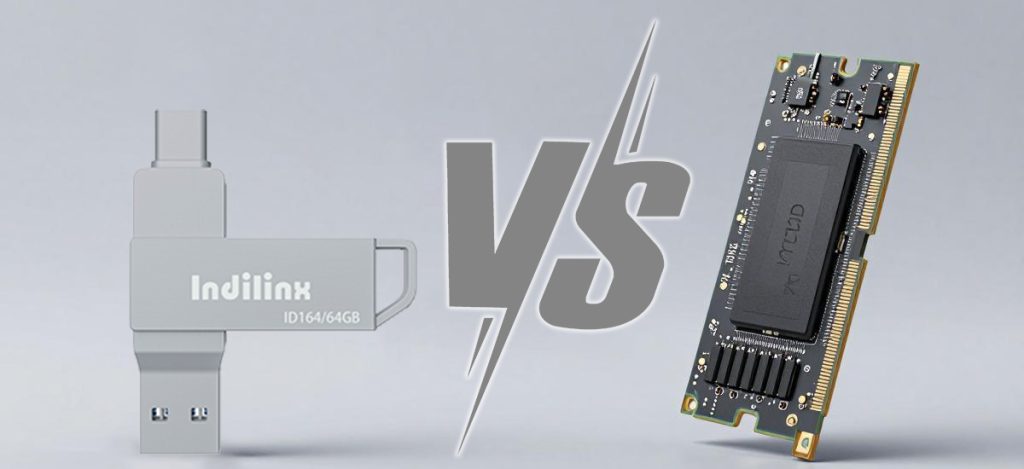
The best storage device depends largely on how it will be used. While SSDs offer better overall performance, USB drives still remain a practical and affordable solution for many users. Understanding different usage scenarios can help you choose the right device.
Best for Everyday Users
For everyday storage tasks, portability and convenience are often more important than maximum performance.
Document Storage
USB drives are ideal for storing:
- Office documents
- PDFs
- Photos
- Personal files
Their small size and low cost make them suitable for daily use.
Portable File Sharing
USB drives provide excellent portability for transferring files between devices.
| Task | Recommended Device |
| Documents | USB Drive |
| Photos | USB Drive |
| Temporary storage | USB Drive |
| Small backups | USB Drive |
For basic storage needs, USB drives remain the most convenient option.
Best for Students and Office Workers
Students and office users often need reliable storage for coursework, presentations, and business files.
Presentation Files
USB drives are commonly used for:
- PowerPoint presentations
- Reports
- Meeting materials
- Classroom assignments
Their plug-and-play compatibility makes them easy to use on different computers.
Study Materials
SSDs may benefit users who regularly work with large files or multiple applications.
Examples include:
- Research databases
- Online learning resources
- Large project files
- Software applications
| User Type | Better Choice |
| Students | USB Drive |
| Office workers | USB Drive |
| Heavy multitaskers | SSD |
Creative professionals often work with large media files that require both speed and capacity.
Photography
Photographers frequently manage:
- RAW images
- Large photo libraries
- Backup archives
SSDs provide faster file transfers and improved workflow efficiency.
Video Production
Video projects often involve:
- 4K footage
- Large editing files
- Rendering projects
- Media backups
| Creative Task | Better Choice |
| Photo storage | SSD |
| RAW editing | SSD |
| Video production | SSD |
| Media backups | SSD |
For content creators, SSDs are generally the preferred choice.
Best for Business and Enterprise Users
Businesses often require reliable storage solutions for large amounts of data.
Data Backup
SSDs provide faster backup and recovery speeds, reducing downtime and improving productivity.
Large-Scale Data Management
Business environments may involve:
- Large databases
- Project archives
- Shared files
- Frequent backups
| Business Requirement | Better Choice |
| File sharing | USB Drive |
| Employee documents | USB Drive |
| Large backups | SSD |
| Business data storage | SSD |
Overall, USB drives are best for portability and everyday storage, while SSDs are better suited for users who need higher performance, larger capacities, and professional-grade storage solutions.
Final Verdict: Which Storage Device Is Better?
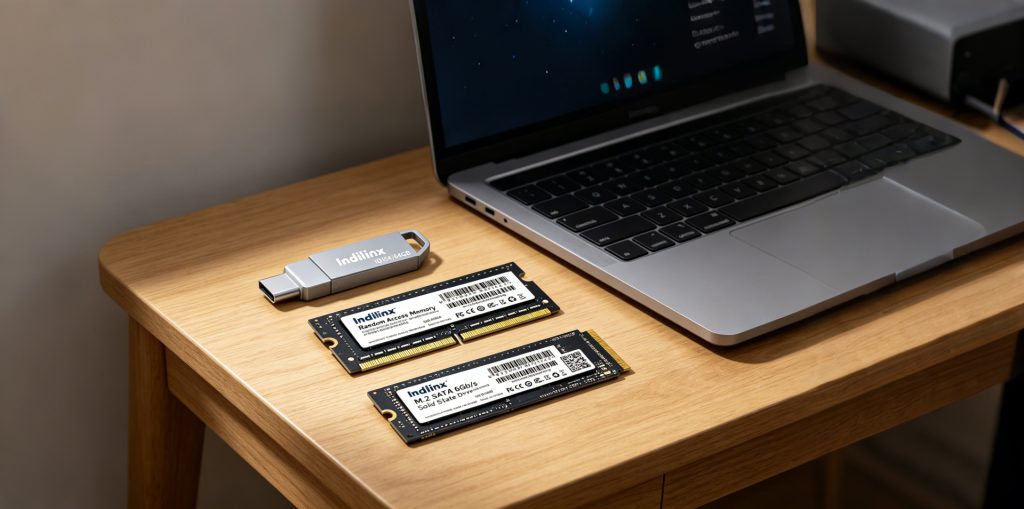
There is no single storage device that is perfect for every user. The better choice ultimately depends on your budget, storage requirements, and how you plan to use the device.
For everyday file transfers, document storage, and portable use, USB drives remain an affordable and convenient solution. Their compact size, broad compatibility, and low cost make them ideal for casual users.
However, for users who require faster performance, larger capacities, improved reliability, and better long-term value, SSDs are the clear winner in 2026. They provide significant advantages for gaming, content creation, backups, and professional workloads.
Final Recommendation
| User Type | Recommended Device |
| Casual users | USB Drive |
| Students | USB Drive |
| Office workers | USB Drive |
| Travelers | USB Drive |
| Gamers | SSD |
| Photographers | SSD |
| Video creators | SSD |
| Business users | SSD |
| Professional workloads | SSD |
Quick Decision Guide
| If You Need… | Choose |
| Lowest cost | USB Drive |
| Maximum portability | USB Drive |
| Large storage capacity | SSD |
| Faster file transfers | SSD |
| Better reliability | SSD |
| Long-term value | SSD |
Overall, USB drives remain an excellent choice for lightweight storage and file sharing, while SSDs offer the best overall performance and value for most users in 2026. For anyone handling large files, demanding applications, or long-term storage needs, an SSD is generally the better investment.