







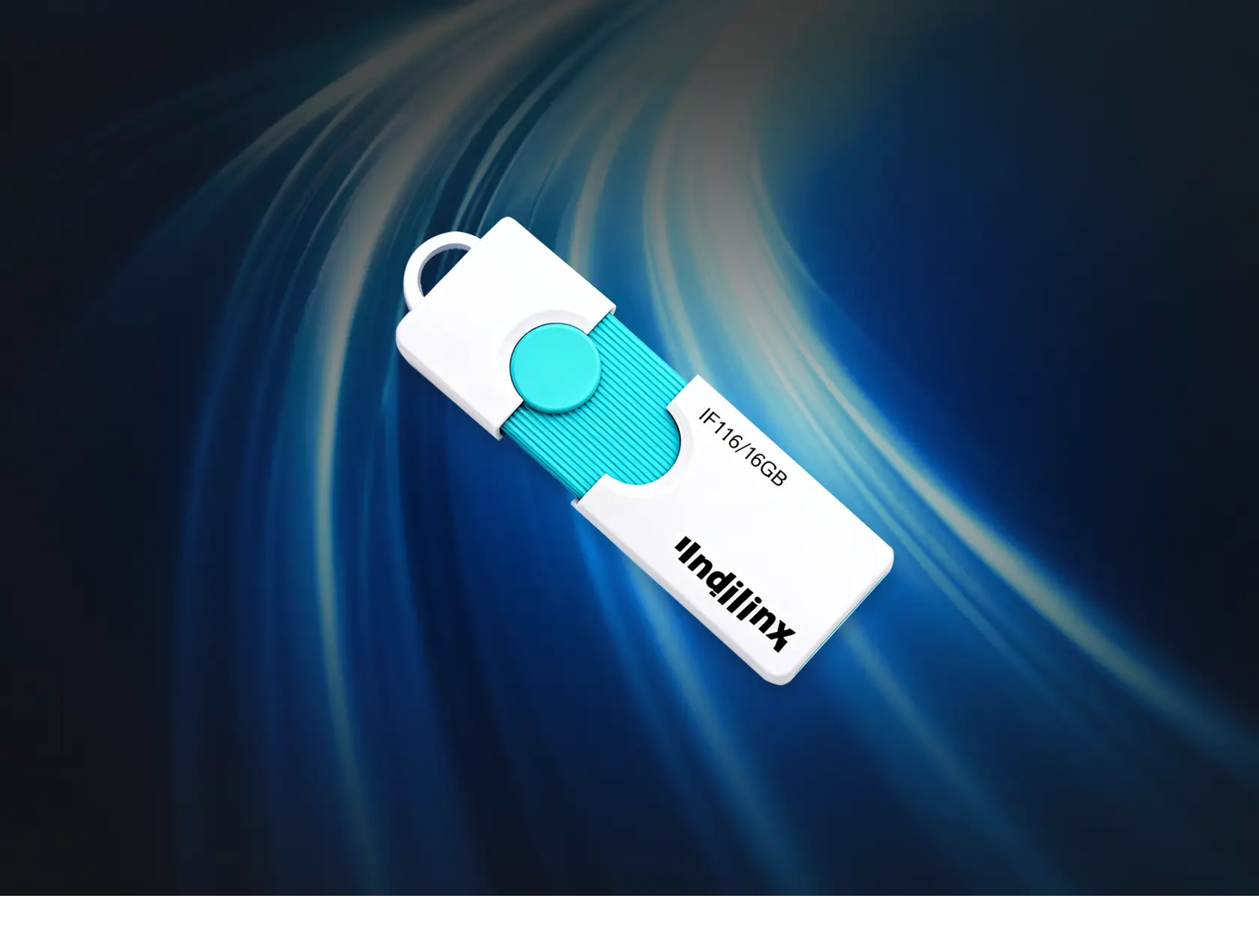

Why do some USB flash drives transfer data quickly, while others frequently freeze? Will data be lost if a USB flash drive is not used for a long time? Is it really suitable as a long-term storage device?
Behind these questions lie more than simple parameter differences; they involve fundamental differences in the structural design, flash memory type, controller solution, and interface standards of USB flash drives. Without this basic understanding, it’s easy to make incorrect judgments during purchase and use, affecting efficiency and even posing data risks.
This article will address these common questions, starting with the basic concepts and working principles of USB flash drives, gradually analyzing their classification, the sources of performance differences, and data security. It will also compare them with external hard drives and SSDs to help you build a systematic understanding and make a clearer choice.
What is a USB Flash Drive?

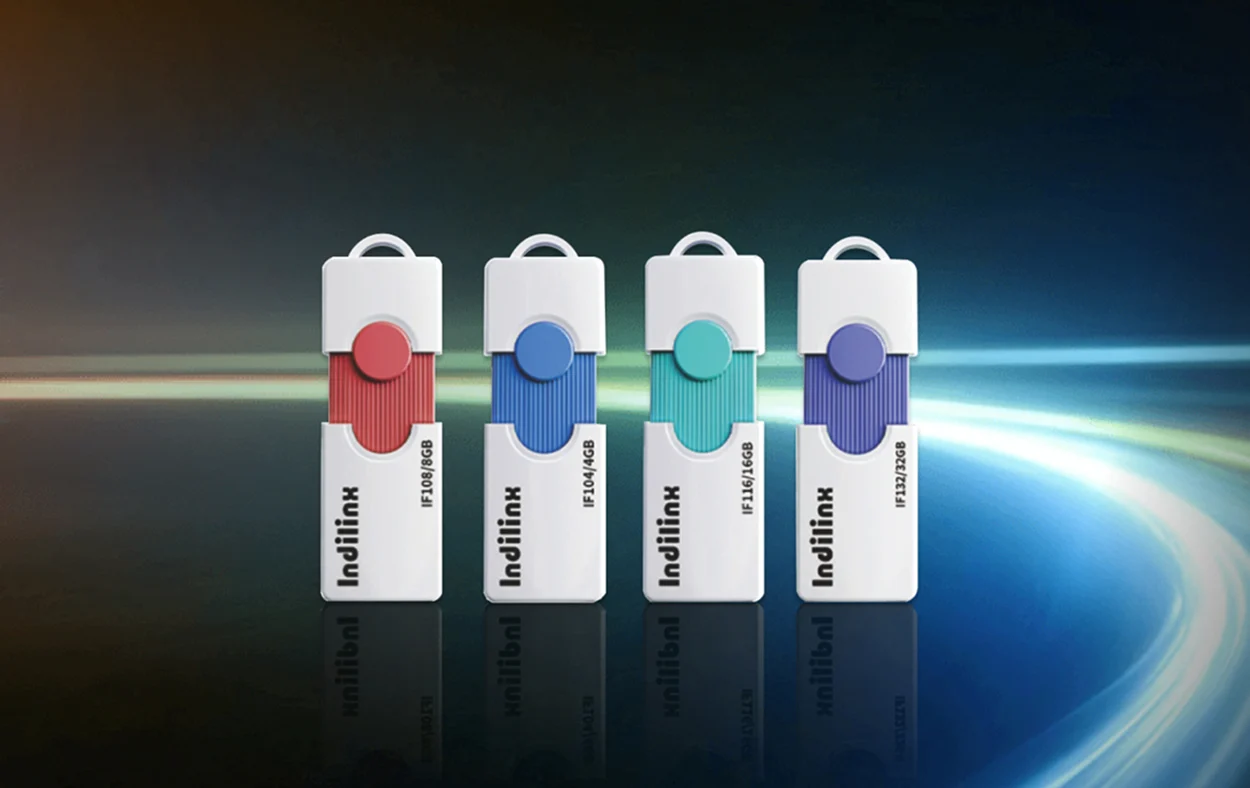
A USB flash drive (USB Flash Drive) is a portable storage device based on NAND flash memory technology. It connects to computers, mobile phones, or other devices via a USB interface to read and write data. Compared to earlier storage media that relied on mechanical structures, USB flash drives have no moving parts, are smaller, more portable, and offer plug-and-play functionality, making them one of the most common tools for daily data transfer.
From a usage perspective, USB flash drives primarily serve as “data transfer intermediaries,” such as for file copying, data transfer, temporary storage, and creating system boot disks. Their advantages lie in their high portability and low barrier to entry. However, in actual use, different USB flash drives often exhibit significant differences in transfer speed, stability, and even data security. These differences are not solely determined by surface parameters but are closely related to their internal structure.
Basic Uses of USB Flash Drives
In specific usage scenarios, the functions of a USB flash drive can be roughly summarized as follows:
- File transfer and backup in daily office work
- Quickly migrate data between different devices
- Create operating system boot disks (such as Windows or Linux)
- Temporarily store large files or use as an emergency storage tool
It should be noted that USB flash drives are more suitable as “short-term storage or data transfer tools,” and have certain limitations in long-term data preservation. This will be further discussed in the subsequent data security section.
Differences from Traditional Storage Devices
Compared to hard disk drives (HDDs), USB flash drives do not rely on disk rotation and read/write heads, thus offering greater shock resistance and lower power consumption. However, they are generally less competitive in terms of capacity and sustained write performance.
Compared to solid-state drives (SSDs), USB flash drives are also based on flash memory technology, but their overall design prioritizes portability and low cost. Their controller performance, cache design, and data management mechanisms are relatively simplified, leading to differences in speed stability and lifespan.
From a positioning perspective, hard disk drives are more suitable for large-capacity, long-term storage, SSDs are better suited for high-performance read/write scenarios, while USB flash drives are more geared towards lightweight, portable data transfer tools. Understanding this helps avoid using USB flash drives as “long-term primary storage devices” in practice, thereby reducing data risk.
What are the Different Types of USB Flash Drives?

USB flash drives are not a single standard product; rather, they have evolved into various types based on different interface formats, transmission standards, and usage scenarios. As device interfaces have gradually transitioned from USB-A to USB-C, and as mobile devices have increased their external storage demands, the form factor of flash drives has continued to expand.
Understanding the core differences between these types is not just about “differentiating products,” but more importantly, about quickly matching your usage scenario when purchasing, avoiding errors in parameter selection.
By Interface Type: Determining Which Devices Can Be Connected
The interface type determines the compatibility range of a USB flash drive and is the first criterion when purchasing.
Standard USB-A Flash Drives: The Most Universal Basic Type
The USB-A interface is one of the most widely used standards, supported by almost all traditional computers, televisions, and automotive devices.
The advantages of this type of flash drive are high stability, wide compatibility, and a wide price range, making it suitable for daily office work, data backup, and basic file transfer. For users whose primary use is with a computer, USB-A remains the most reliable choice.
USB-C Flash Drives: The Mainstream Trend for New Devices
The USB-C interface supports reversible insertion and boasts higher bandwidth. As thin and light laptops, smartphones, and tablets increasingly adopt the USB-C interface, the use cases for these flash drives continue to expand.
For applications requiring high-speed transfer of large files or frequent connections to mobile devices, USB-C flash drives offer a smoother user experience and better long-term compatibility.
Dual-Interface USB Flash Drives: Solving Cross-Device Transfer Issues
Dual-interface flash drives typically combine two interface types, such as USB-A and USB-C, allowing them to adapt to both new and old devices.
The core value of these products lies in reducing the “transfer cost” during data transfer. Users can directly exchange files between computers and mobile phones without the need for data cables or cloud tools, making them suitable for multi-device usage scenarios.
Categorization by Usage Scenarios: Determining if it’s truly right for you
Besides interface differences, different types of flash drives are optimized for specific usage needs in their functional design.
OTG Flash Drives: A Solution for Expanding Storage in Mobile Devices
OTG (On-The-Go) technology allows phones and tablets to directly read external storage devices, bypassing the need for a computer.
In practical use, OTG flash drives are mainly used for photo export, video backup, and temporary file transfer, especially suitable for users with limited storage space or who need to quickly free up phone storage. Most OTG products now adopt a dual-interface design to improve compatibility.
Encrypted and Secure Flash Drives: Data Protection First
These flash drives have built-in hardware encryption, password protection, and even fingerprint recognition functions, primarily targeting users with high data security requirements.
In enterprise office, financial data management, or personal privacy storage scenarios, these products effectively prevent unauthorized access, transforming from “storage tools” into “secure data carriers.”
Wireless USB Flash Drives: Enhanced Access Flexibility
Wireless flash drives have built-in Wi-Fi modules, allowing users to access and manage stored content wirelessly without a physical device connection.
This type is suitable for multiple people to share files or access data across devices, but due to cost and usage habits, its application scenarios are relatively niche and it is more geared towards users with specific needs.
Classification by Performance Standards: Determining Usage Efficiency
Beyond interface and functionality, the USB transmission standard directly determines the performance ceiling of a flash drive.
High-Speed USB 3.0 / 3.1 / 3.2 Flash Drives
USB 3.0 and above offer significantly improved bandwidth compared to USB 2.0, drastically reducing file transfer times.
For users who frequently handle high-definition video, large project files, or batch data backups, high-speed flash drives can significantly reduce waiting time and improve overall efficiency.
It’s important to note that interface type and transmission standard are two different dimensions; even a USB-A interface may support the USB 3.2 standard.
How to understand the relationship between these types
In actual purchasing, these categories are not mutually exclusive, but can coexist:
- A product can simultaneously be a USB-C interface + dual-interface design + USB 3.2 high-speed standard
- OTG flash drives are usually also dual-interface flash drives
- High-speed performance can appear in any interface type
When faced with multiple types, you can quickly filter in the following order:
- Determine the device interface (USB-A or USB-C)
- Determine if cross-device use is needed (whether to choose dual-interface or OTG)
- Decide whether a high-speed model is needed based on the amount of data
- If sensitive data is involved, consider encryption features.
This selection method avoids repeatedly comparing numerous parameters, thus more efficiently finding the right USB flash drive for your needs.
USB Internal Structure and Working Principle

Although USB flash drives are small in size, their internal structure is actually quite complex. Their stability and performance depend on the cooperation of their core components. Understanding their structure and working principles helps us better select, use, and maintain USB flash drives.
The Role of the Controller Chip
The controller chip is the brain of the USB flash drive, responsible for managing data storage, retrieval, and erasure/writing. Its main functions include:
- Data Management: Controlling the distribution of data within the flash memory chips to ensure balanced data writing and extend flash memory lifespan.
- Performance Optimization: Determining the read and write speed of the USB drive and handling caching and error correction (ECC).
- Compatibility and Protocol Support: Responsible for communicating with computers or other devices, supporting interface protocols such as USB 2.0, USB 3.0, and USB 3.2.
NAND Flash Memory Chip Types (SLC / MLC / TLC / QLC)
The core of data storage in a USB flash drive is the NAND flash memory chip, which determines its capacity, speed, and lifespan. Based on the number of bits of data stored in each storage cell, storage types can be categorized as follows:
| Type | Bits per Cell | Speed | Lifespan | Characteristics |
| SLC (Single-Level Cell) | 1 bit | Ultra-fast | Ultra-long | Highest stability, expensive, mainly used in industrial and high-end equipment |
| MLC (Multi-Level Cell) | 2 bits | Relatively fast | Relatively long | Balances performance and cost, suitable for general high-performance USB flash drives |
| TLC (Triple-Level Cell) | 3 bits | Medium | Medium | Mainstream consumer-grade USB flash drives, mostly for large capacities |
| QLC (Quad-Level Cell) | 4 bits | Relatively slow | Shorter | Low cost per unit capacity, suitable for storing large amounts of data, but with a shorter lifespan |
Overall, there is no absolute superiority or inferiority among SLC, MLC, TLC, and QLC; rather, they are suitable for different needs. If you prioritize ultimate performance and reliability, you can choose SLC or MLC; if you value capacity and cost-effectiveness more, then TLC and QLC are more common choices.
Basic Data Read/Write Process
While the data read/write process of a USB flash drive is transparent to the user, each step is crucial:
Data Writing Process
When a user copies a file to the USB flash drive:
- The computer first sends data via the USB interface;
- The controller chip receives and processes the data;
- The controller chip locates an available flash memory storage area;
- The data is written to the NAND flash memory chips;
- The controller chip records the logical and physical addresses corresponding to the data.
During this process, the controller chip automatically performs wear leveling and error checking to ensure safe data storage.
Data Reading Process
When a user opens a file on the USB flash drive:
- The operating system sends a read request;
- The controller chip locates the corresponding data address;
- Data is read from the flash memory chips;
- The data undergoes error correction and verification;
- Finally, it is transmitted back to the computer for display.
Since the read operation does not involve an erasure process, the read speed is usually faster than the write speed.
Data Erasure Process
Unlike traditional hard drives, flash memory cannot directly overwrite existing data.
When new data needs to be written:
- The existing data block is erased;
- The flash memory block is restored to a blank state;
- The new data is rewritten.
This “erase first, write later” mechanism is the fundamental reason for the limited erase/write lifespan of flash memory. Therefore, both USB flash drives and SSDs have a limited lifespan.
Why can USB Flash Drives retain Data even When Power is Off?
Many users wonder: why doesn’t the data on a USB flash drive disappear after it’s unplugged from the computer? The reason is that NAND flash memory is non-volatile memory.
Non-volatile memory means that even when the power is disconnected, the electronic state of the storage cells can be maintained for a long time, so the data will not be lost due to power failure. This is completely different from computer RAM. RAM is volatile memory; once power is off, the data is immediately lost. USB flash drives achieve their ability to retain data for a long time precisely because of non-volatile flash memory technology.
What Determines the Performance of a USB Flash Drive?

In practical use, many people notice a phenomenon: USB flash drives, even those labeled as having a USB 3.0 interface, can have significantly different transfer speeds. Some can stably copy large files at high speed, while others experience a noticeable drop in speed after a short period. This difference is not caused by a single factor, but is determined by multiple layers of hardware and protocols.
Overall, the performance of a USB flash drive is mainly affected by three aspects: read and write speeds, interface standards, and transmission protocols. These factors collectively determine its actual performance in different scenarios.
Key Factors Affecting Read and Write Speeds
Read and write speeds are the core indicators for measuring USB flash drive performance, but they are not simply based on the “nominal speed,” but are formed by the combination of multiple hardware factors.
Firstly, it is the type of flash memory chip. Different types of NAND flash memory (such as SLC, MLC, TLC, QLC) have inherent differences in data write speed and stability. For example, SLC has faster write speeds and higher durability, while QLC has an advantage in cost control, but is more prone to speed degradation in continuous write scenarios.
Secondly, it is the performance of the controller chip. The controller not only handles data scheduling but also determines caching strategies, data allocation methods, and error correction capabilities. Some high-performance controllers, in conjunction with caching mechanisms (such as SLC Cache), can provide high write speeds in the short term, but the speed may drop significantly after the cache is exhausted. This is why many USB flash drives are “fast at the beginning and slow at the end.”
Thirdly, file type and usage scenarios have different impacts. Random read/write of small files and continuous transfer of large files have different performance requirements. Most USB flash drives perform well in sequential read/write (such as copying movie files), but when processing a large number of small files, the speed will drop significantly due to limited random read/write capabilities.
Therefore, a single “maximum read/write speed” parameter cannot fully reflect the real-world user experience and needs to be considered in conjunction with the hardware architecture and actual usage scenarios.
USB interface version speed limitations (2.0 / 3.0 / 3.2)
The interface standard determines the theoretical upper limit of data transfer, which is the “ceiling” of performance.
USB 2.0 has a theoretical bandwidth of 480Mbps (approximately 60MB/s), but in practical use it typically only reaches around 30MB/s, making it inefficient for large file transfers. USB 3.0 (also known as USB 3.2 Gen1) increases the bandwidth to 5Gbps (approximately 625MB/s), significantly improving transfer speeds when hardware allows.
Higher versions, such as USB 3.2 Gen2 and even USB 4, offer even higher bandwidth, but in flash drive products, limited by the controller and cost, these high-specification interfaces may not always fully realize their theoretical performance.
It’s important to note that the interface version depends not only on the flash drive itself but also on the interface support of the device being used. If the computer or mobile phone still uses a USB 2.0 interface, even using a USB 3.0 flash drive will limit the actual speed to a lower level.
Therefore, when purchasing, it’s necessary to consider the compatibility of the entire process, not just the parameters of a single device.
The Impact of UASP Protocol Support
Besides hardware and interface, the transmission protocol also affects performance. UASP (USB Attached SCSI Protocol) is an optimized solution compared to the traditional USB Mass Storage Protocol (BOT), its core being improved data transfer efficiency.
The traditional BOT protocol uses a serial processing method for data transfer, meaning it can only process one command at a time, which becomes a bottleneck in high-frequency read/write scenarios. UASP, on the other hand, supports command queuing and parallel processing, allowing multiple read/write requests to be handled simultaneously, thereby reducing latency and improving overall throughput.
In practical use, devices supporting UASP typically perform better in the following scenarios:
- Transfer of large numbers of small files
- Multi-task parallel read/write
- Sustained high-load data operations
However, UASP’s performance also depends on system and interface support. If the host device or operating system does not support the protocol, its performance advantages cannot be realized.
In summary, the performance of a USB flash drive is essentially the result of the combined effect of “flash memory chips + controller solution + interface standard + transmission protocol.” Focusing on a single parameter often fails to accurately determine the actual user experience. Understanding this can prevent falling into the misconception of “only looking at the interface version” or “only looking at the nominal speed” when purchasing.
Can USB Flash Drives Safely Store Data?

As one of the most common portable storage devices, USB flash drives are widely used for file transfer, data backup, and everyday storage. However, many users wonder: can USB flash drives really safely store data?
In fact, USB flash drives offer high data storage stability, but their security is not absolute. To fully understand this issue, it’s necessary to analyze their storage principles, advantages, potential risks, and safe usage methods.
USB Flash Drive Data Storage Principles
USB flash drives use NAND Flash memory technology, a non-volatile storage medium. “Non-volatile” means that even when the device is powered off, the stored data is retained and will not be lost due to power loss.
Flash memory chips write data to storage cells via electronic signals, and a controller chip manages the data reading, writing, and erasing processes. When a user saves a file to a USB flash drive, the data is stored in binary form in the flash memory chips, thus achieving long-term preservation.
Compared to traditional hard disk drives (HDDs), USB flash drives have no moving parts, thus offering better shock resistance and portability, which is a key reason for their widespread use in data storage.
Advantages of USB Flash Drives for Data Storage
USB flash drives are favored by individual and business users primarily due to the following advantages:
High Portability
- High Portability: USB flash drives are small and lightweight, easily fitting into pockets, backpacks, or keychains, making them convenient for portable use and mobile work.
- Stable Data Retention: Utilizing flash memory technology, USB flash drives can retain data for extended periods under normal use. High-quality products can typically retain data for years or even longer.
- Wide Device Compatibility: Modern USB flash drives are compatible with operating systems such as Windows, macOS, and Linux, and also support smart TVs, in-vehicle systems, game consoles, and some smartphones and tablets.
- High Transfer Efficiency: With the widespread adoption of USB 3.0, USB 3.2, and USB-C interfaces, the data read and write speeds of flash drives have significantly improved, enabling rapid storage and transfer of large files.
- Access Without a Network: Compared to cloud storage, USB flash drives do not rely on an internet connection. Users can access and manage files offline anytime, making them more suitable for scenarios requiring immediate data access.
What are the risks of storing data on a USB flash drive?
While USB flash drives offer high reliability, no storage device is completely immune to data loss.
- Physical Damage Risk: USB flash drives are frequently carried and are easily damaged by drops, pressure, water damage, high temperatures, or static electricity. If the internal chips are damaged, data may become unreadable.
- Accidental Data Deletion or Formatting: Human error is a common cause of data loss. For example, accidentally deleting files, incorrectly formatting the device, or overwriting existing data can all lead to the loss of important information.
- Virus and Malware Attacks: When a USB flash drive is connected to an infected computer, it may be infected with viruses, Trojans, or ransomware. This can not only damage files but also lead to data leaks.
- Limited Flash Memory Lifespan: Flash memory chips are not permanent storage media; each storage cell has a limited number of write cycles. While modern flash drives typically have a lifespan sufficient for everyday use, frequent writing over a long period can still affect their stability.
- Loss or Theft Risk: Due to their small size, USB flash drives are easily lost. If sensitive information is stored on them, there is a risk of privacy breaches or the leakage of business data.
How to Improve Data Security of USB Flash Drives?
To maximize data security, it is recommended to develop good usage and management habits.
Choose Reliable Products
High-quality brands typically use more stable flash memory chips and controller chips, reducing the probability of data corruption and device malfunction.
Establish Multiple Backup Mechanisms
Do not store important data on only one USB flash drive. It is recommended to back up to a computer hard drive, external hard drive, or cloud storage platform simultaneously for multiple layers of data protection.
Properly Insert and Remove Devices
Before unplugging a USB flash drive, perform a “safe eject” operation to avoid forcibly disconnecting the connection before files have finished writing, which could cause data corruption.
Use Encryption Features
For data containing trade secrets, financial information, or personal privacy, choose USB flash drives that support AES hardware encryption, password protection, or fingerprint recognition to improve data confidentiality.
Regular Inspection and Maintenance
It is recommended to regularly scan for viruses, check the storage status, and promptly transfer important data to avoid data loss due to device aging.
Avoid Extreme Usage Environments
Keep the flash drive away from high temperatures, humidity, strong magnetic fields, and severe impacts to protect the stable operation of the flash memory chips and internal circuitry.
How do Micro USB Flash Drives Differ From Portable Hard Drives and SSDs?

When choosing external storage devices, many people hesitate between USB flash drives, external hard drives (HDDs), and external solid-state drives (SSDs). While all three can store and transfer data, they differ significantly in shock resistance, capacity, transfer speed, portability, and price. Understanding these differences helps in choosing the most suitable storage solution based on your actual needs.
USB Flash Drives, External Hard Drives, and SSDs Comparison Overview
| Comparison Items | USB Flash Drive | Portable Hard Drive (HDD) | Portable Solid State Drive (SSD) |
| Storage Media | NAND Flash Memory Chips | Disk Storage | NAND Flash Memory Chips |
| Common Capacities | 16GB-1TB | 1TB-8TB and above | 500GB-4TB and above |
| Transfer Speed | Medium | Fast | Very Fast |
| Shock Resistance | Excellent | Average | Excellent |
| Portability | Extremely High | High | High |
| Weight | Lightest | Heaviest | Lightest |
| Power Consumption | Low | High | Low |
| Lifespan | Long | Long | Long |
| Cost per Unit Capacity | Medium | Lowest | Highest |
| Suitable Scenarios | File Transfer | Large-Capacity Backup | High-Performance Storage |
Shock Resistance: USB Flash Drives and SSDs are Superior
Both USB flash drives and portable SSDs use flash memory chips to store data, with no mechanical parts, making them highly shock-resistant. Even when moved or dropped, the risk of data loss is low.
Portable hard drives contain high-speed rotating disks and read/write heads, which are easily damaged or develop bad sectors when subjected to shock, drops, or pressure, resulting in relatively lower data security.
Capacity: Portable Hard Drives Have the Most Obvious Advantage
If storage capacity is the primary concern, portable hard drives are undoubtedly the most advantageous.
- USB Flash Drives: 16GB-1TB, suitable for office documents, photos, and study materials.
- Portable Hard Drives: 1TB-8TB or even larger, suitable for massive amounts of videos, pictures, and long-term backups.
- Portable SSDs: 500GB-4TB, larger capacity but relatively more expensive.
Therefore, if you need to store large amounts of data but have a limited budget, a portable hard drive is the best choice.
Transfer Speed: SSD Far Ahead
Transfer speed is the biggest difference among the three:
- USB Flash Drive: 50-300 MB/s, suitable for everyday file transfers such as documents and images.
- External Hard Drive: 80-160 MB/s, mechanical structure limits speed, making it difficult to meet high-performance needs.
- External SSD: 500-4000 MB/s, suitable for high-definition video editing, large software or game data transfer.
For professional users or high-performance scenarios, the speed advantage of external SSDs is very obvious.
Portability: USB Flash Drive Most Convenient
- USB Flash Drive: Small and lightweight, easy to carry, can be attached to a keychain or carried around.
- External Hard Drive: Larger and heavier, requires an additional data cable.
- External SSD: Lighter than external hard drive, but still requires a data cable connection.
Therefore, USB flash drives have the greatest advantage in portability, suitable for frequent mobile office work and temporary file transfers.
Should you choose a USB flash drive, external hard drive, or SSD?
- USB flash drive: For everyday office file transfers, storage of study materials, portable data, and temporary file backups.
- External hard drive: For massive photo and video storage, long-term backups, and home data centers.
- External SSD: For high-definition video editing, large software data transfers, game expansion, and professional mobile office work.
In summary, USB flash drives, external hard drives, and portable SSDs each have their advantages:
- USB flash drives are small, portable, and plug-and-play, suitable for everyday file transfers;
- External hard drives offer large capacities and high cost-effectiveness, suitable for long-term data storage;
- Portable SSDs are fast and stable, suitable for high-performance scenarios.
Choosing the most suitable device based on your storage needs, budget, and usage environment is crucial to ensuring data security while achieving the most efficient data storage experience.
What are the Suitable Use Cases and Target Users for USB Flash Drives?

USB flash drives, with their small size, portability, ease of use, and strong compatibility, have become common storage tools in daily life and office work. However, they are not “all-purpose.” Different capacities, sizes, and interface types of USB flash drives are suitable for different scenarios and users.
Choosing the right user group based on capacity
Capacity is a key factor in determining the use of a USB flash drive.
- 16GB-64GB: Suitable for storing light office data such as documents, spreadsheets, and presentations. Suitable for students, office workers, and people who frequently need to carry a small number of files.
- 128GB-256GB: Suitable for storing high-definition photos, high-definition videos, study materials, and medium-sized project files. Suitable for photography enthusiasts, teachers, or field office workers.
- 512GB-1TB and above: Suitable for storing large amounts of high-definition videos, professional design materials, or backing up entire system data. Suitable for video editors, designers, and professional users who need high-capacity portable storage.
Choose based on size and portability
The size of a USB flash drive directly affects its portability and ease of use.
- Ultra-small USB flash drives: Can be attached to a keychain, suitable for frequent travelers or those needing to transfer files quickly.
- Standard-sized USB flash drives: Comfortable to hold and easy to plug and unplug, suitable for students and office workers.
- Large USB flash drives with casings or protective designs: Usually waterproof and shockproof, suitable for outdoor workers or those who frequently work on the go.
Choose based on compatibility
Modern USB flash drives have various interfaces, and the compatibility of different interfaces directly affects usage scenarios.
- USB-A interface: Suitable for traditional computers, laptops, and some in-vehicle devices; the most commonly used interface type.
- USB-C interface: Suitable for newer laptops, tablets, and some Android phones; supports high-speed transfer and reversible insertion.
- Dual-interface USB flash drives (USB-A + USB-C / OTG): Suitable for cross-device file transfer, such as file sharing between computers and mobile phones.
- OTG-enabled USB flash drive: Suitable for direct connection to mobile phones and tablets, facilitating the backup and sharing of photos, videos, and office files.
Summary of Applicable Scenarios
Considering capacity, size, and compatibility, USB flash drives are suitable for the following scenarios:
- Daily office and study: Storing documents, courseware, and spreadsheets; easy to carry and share.
- Travel and business trips: Carrying a small USB flash drive to back up important files or photos.
- Professional creation and design: High-capacity flash drives store video and image materials, facilitating file transfer between different devices.
- Multi-device sharing: Dual-interface or OTG flash drives enable seamless data transfer between mobile phones, tablets, and computers.
By choosing a USB flash drive with the appropriate capacity, size, and interface type, users can obtain the most convenient and secure storage experience in different scenarios.